
To learn how to find a seed with what you want, configure your preferred biome or structure conditions on our interactive Seed Finder and start the seed search. The tool scans candidate seeds directly in your browser background workers to locate seeds matching your exact criteria.
Selecting Your Game Version
Open the Version menu located in the top header bar. Choose your intended game version under either Java Edition or Bedrock Edition. Selecting your game build updates search parameters to match coordinate distributions for that specific edition and release. Because of that separate placement, the same seed can put a structure in a different place on Bedrock than on Java. On mobile screens, the workspace stacks vertically into a single column with the header bar on top.
Choosing Presets or Building Custom Criteria
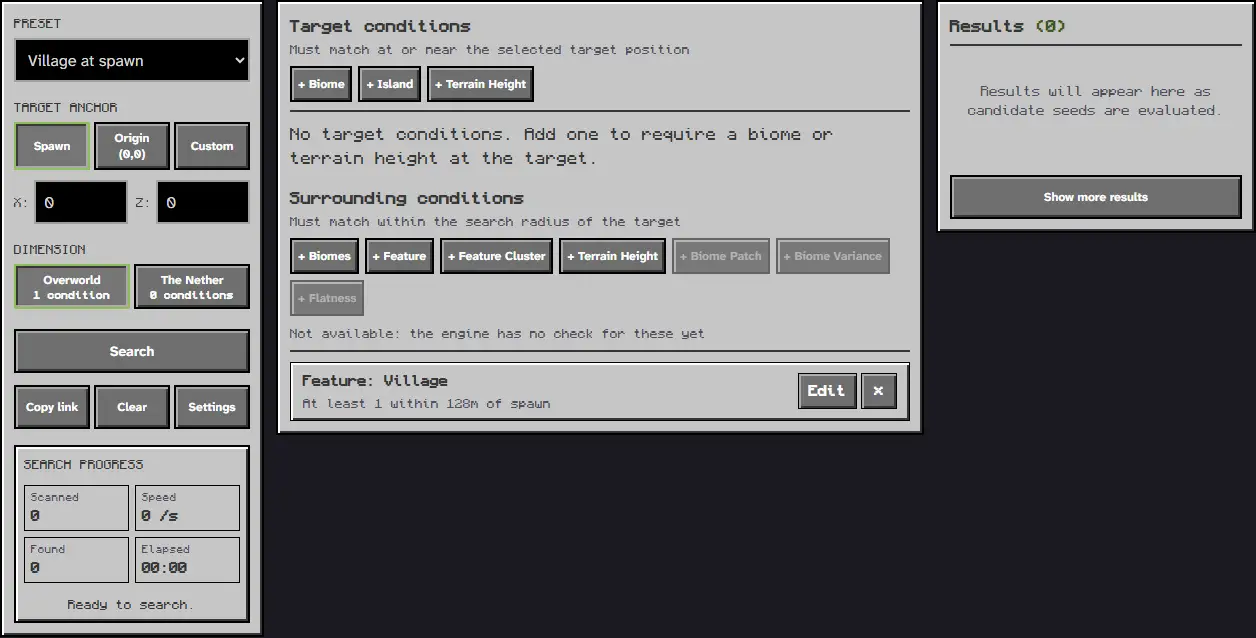
In the panel on the left, open the Preset selector to pick a preconfigured search template such as Speedrun or Custom. Selecting Custom lets you design unique requirement filters from scratch. You can also configure the target anchor point by selecting Origin (0,0) or entering specific target coordinates into the X and Z fields. Use the Dimension buttons to specify whether conditions apply to the Overworld or The Nether.
Adding Target and Surrounding Conditions
In the central Condition Builder panel, add criteria using the buttons under Target conditions and Surrounding conditions. Click + Biome to require specific terrain environments such as cherry groves, badlands, or mushroom fields at the target coordinates. Click + Island to search for isolated landmasses surrounded by deep ocean. Under Surrounding conditions, click + Feature to require structures like ancient cities, monuments, or fortresses within a chosen block radius.
Running the Seed Search
When your conditions are configured, click the Search button in the panel on the left to begin scanning candidate seeds. The tool utilizes client-side background workers to test seeds in parallel without overloading your system. The progress section displays real-time statistics including scanned count, calculation speed, elapsed time, and total found matches. The same button toggles to Stop during an active scan, allowing you to pause at any moment, or you can click Clear to reset your conditions.
Inspecting Discovered Seed Results
Matching seeds appear immediately in the Results panel on the right side. Each result card displays the full seed number, matching condition summaries, and quick action buttons. Click Copy link to share the configured search parameters, or click any seed number to open it directly in our interactive map viewer for comprehensive exploration. A seed is stored as a 64-bit whole number, so 123 and -123 are two different seeds. An empty seed field gives the world a random seed. The /seed command shows the world’s seed; in single player anyone can use it, on a server it needs operator rights.
Troubleshooting Common Seed Finder Search Issues
If your search yields zero matches or runs slowly, review these common filter conflicts. Setting mutually exclusive target conditions, such as requiring hot desert and frozen snowy plains at the exact same position, cannot match. When a search finds nothing, the Results panel displays zero matches while the progress counter continues scanning. To resolve this, widen your feature search radius, remove conflicting constraints, or reduce the number of required conditions to broaden candidate discoveries. If scanning pauses unexpectedly, check whether background browser throttling paused worker threads and keep the tab active during large searches.
Related Guides
Learn more about world seed exploration and specialized candidate search tools:
- Explore your discovered seeds using our How to Use a Minecraft Seed Map Guide.
- Search for specific climate zones using our How to Find a Biome from a Seed Guide.
- Review slime coordinates using How to Find Slime Chunks in Minecraft
- Launch our full Seed Finder to start scanning custom seed criteria in your browser.
Sources
Documented from our client-side WebAssembly map viewer interface and seed calculation engine.