
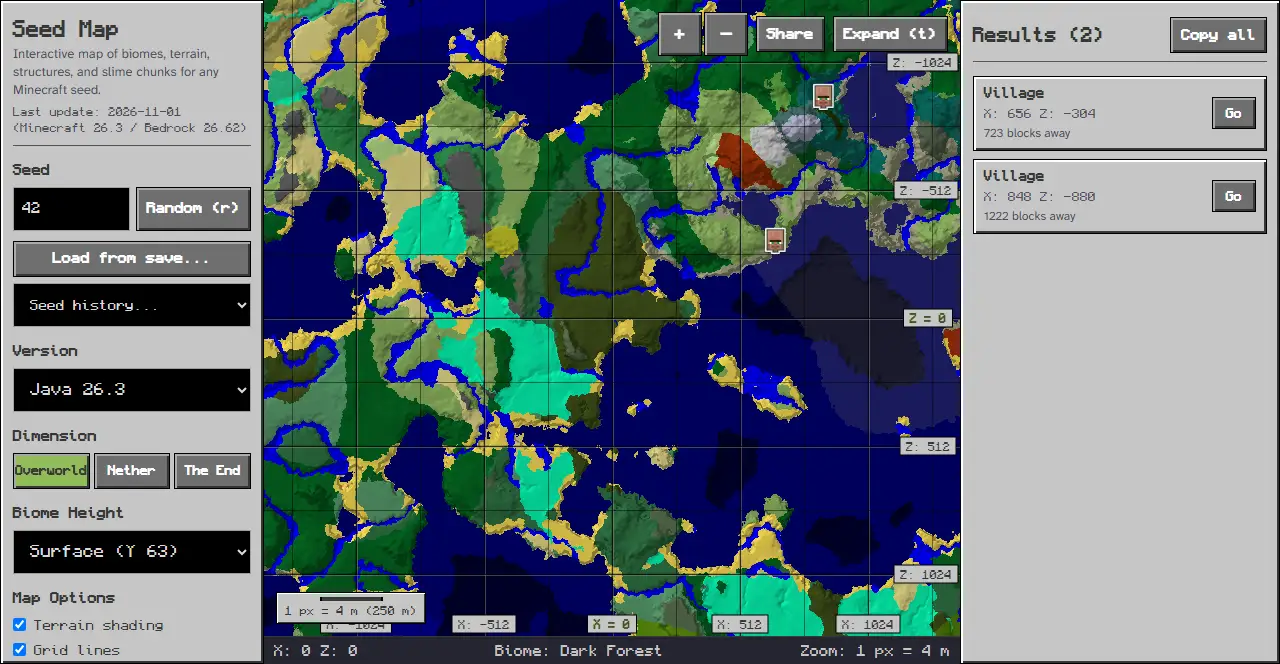
To learn how to use a Minecraft seed map, enter your world seed into our interactive Seed Map and select your game edition. The browser map immediately renders biomes, terrain contours, and placed structures across coordinate space without requiring external game mods.
Entering Your World Seed
In the panel on the left, locate the Seed input field labeled Seed with the placeholder Seed or text. You can type numeric values, paste existing world seeds, or click the Random (r) button to roll an arbitrary seed immediately. A seed made only of digits is used as that number; any other text is turned into a number with Java’s String hashCode. The /seed command shows the world’s seed; in single player anyone can use it, on a server it needs operator rights. You can also click the “Load from save…” button to read a level.dat file, or open the “Seed history…” selector to reload previously inspected values across your current session. On mobile screens, these controls sit in the bottom sheet below the map, opened by tapping the Options tab.
Selecting Game Version and Dimension
Open the Version menu in the panel on the left to choose your release from the grouped Java Edition or Bedrock Edition listings. Picking the matching edition and version displays coordinate data calculated for that target release. Our map works out Bedrock structure positions with separate Bedrock placement code that uses a Mersenne Twister random. Because of that separate placement, the same seed can put a structure in a different place on Bedrock than on Java. Next, use the Dimension selector buttons in the left rail to switch the map canvas between Overworld, Nether, and The End.
Toggling Feature Layers
Under the Features section in the left rail, browse available structure categories including temples, ancient cities, and trail ruins. Click All to display every available marker on the canvas, or click None to clear the map for an unobstructed biome view. Each feature toggle includes an icon representation and a counter showing discovered markers within your loaded search area.
Navigating Coordinates and Map Controls
To inspect specific world locations, enter horizontal values into the Go to Coordinates (s) inputs labeled X and Z in the left rail, then click the Go button. You can toggle Map Options checkboxes including Terrain shading and Grid lines to adjust canvas styling. Adjust magnification using the ”+” and ”-” zoom buttons, or click Expand (t) to engage fullscreen viewing. Click the Share button to copy a persistent direct link encoding your exact seed, version, dimension, and map center.
Reading Results and Status Bar
The bottom status bar provides live readouts showing exact cursor position with X and Z coordinates, current Biome, and Zoom ratio. Clicking any structure marker highlights its location and opens the Results panel on the right side, or under the Results tab on mobile viewports. The Results panel displays coordinates along with linear block distance calculated from your target location.
Troubleshooting Common Seed Map Issues
If the map displays empty terrain or missing markers, check these common configuration problems. An empty seed field causes the tool to pause rendering until valid numeric or text input is entered. If displayed structures do not match expectations, check that the Version dropdown specifies your exact edition and release. If your searched destination appears blank, check whether your coordinates lie far outside the currently loaded canvas area and use the Go button to recenter the map.
Related Guides
To explore edition-specific workflows and biome search tools, review our companion tutorials:
- Review edition setup steps in our Minecraft Bedrock Seed Map Guide.
- Search for specific climate zones using our How to Find a Biome from a Seed Guide.
- Open our full Seed Map to begin exploring your world coordinates online.
Sources
Documented from our client-side WebAssembly map viewer interface and seed calculation engine.