
To explore a Minecraft Bedrock seed map, select your Bedrock release from the version menu in our interactive Seed Map and enter your world seed into the input box. The map displays biome layouts, terrain heights, and structure coordinates specifically calculated for Bedrock Edition.
Selecting Bedrock Edition from the Version Selector
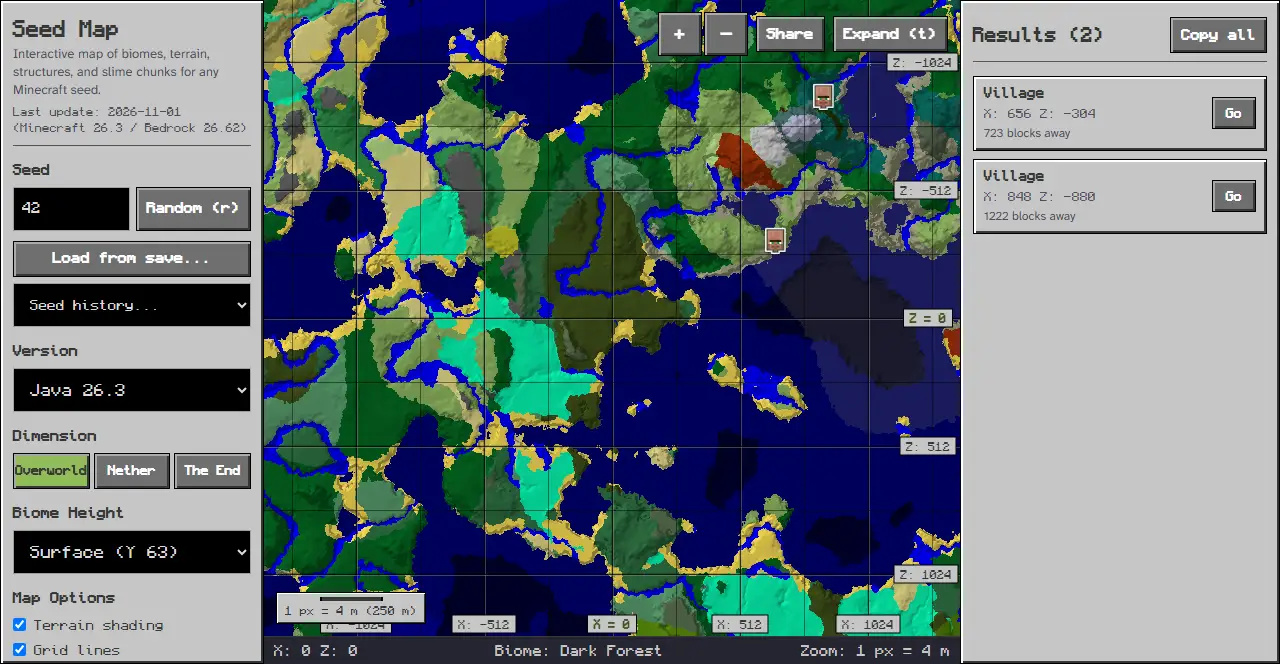
Locate the Version menu in the panel on the left. On desktop screens, this panel sits to the left of the map viewport; on mobile screens, open the bottom sheet by tapping the Options tab below the map canvas. Click the Version selector and scroll to the Bedrock Edition section to choose your target build. Choosing Bedrock Edition configures the viewer to render coordinate positions for that release. Our map works out Bedrock structure positions with separate Bedrock placement code that uses a Mersenne Twister random. Because of that separate placement, the same seed can put a structure in a different place on Bedrock than on Java.
Entering Bedrock World Seeds
Type your numeric seed value into the Seed input field, which displays the placeholder Seed or text. You can also click the Random (r) button to roll an arbitrary seed immediately. A seed made only of digits is used as that number; any other text is turned into a number with Java’s String hashCode. A seed is stored as a 64-bit whole number, so 123 and -123 are two different seeds. You can click the “Load from save…” button to read a level.dat file, or open the “Seed history…” selector to recall previously inspected maps.
Choosing Dimensions and Viewing Biomes
Switch between world spaces using the Dimension selector buttons labeled Overworld, Nether, and The End in the left rail. In the Overworld, the map renders biome regions, temperature distributions, and elevation shading. Switching to the Nether reveals nether waste zones, basalt deltas, and crimson forest distributions across the underworld dimension.
Enabling Bedrock Feature Layers
Under the Features section in the left rail, toggle individual marker checkboxes to display temples, outposts, ancient cities, monuments, and mansion landmarks. Click All to turn on every available feature marker simultaneously, or click None to view clean biome geography. Each layer checkbox displays an icon marker and an updated count indicating how many structures have been found in the current search radius.
Navigating to Exact Coordinates
Use the Go to Coordinates (s) inputs in the left rail to jump directly to specific positions in your Bedrock world. Input horizontal values into the fields marked X and Z, then click the Go button to center the viewport. You can also toggle Map Options checkboxes including Terrain shading and Grid lines to adjust canvas styling. Adjust magnification with the ”+” and ”-” zoom buttons, or press Expand (t) for fullscreen mode. Click Share to copy a direct link preserving your map configuration.
Reading Results and Status Bar
The bottom status bar continuously reports your cursor coordinates, current Biome, and Zoom ratio. Clicking any structure marker populates the Results panel on the right side (or under the Results tab on mobile viewports) with coordinate numbers and linear distance from your search center. You can copy coordinates directly from the panel.
Troubleshooting Bedrock Seed Map Discrepancies
When inspecting Bedrock worlds, several common issues can cause unexpected results. If displayed structures do not match your world, check that the Version dropdown specifies Bedrock Edition rather than Java Edition. Check that the seed field contains numeric digits rather than empty spaces. If your target location displays grey boundaries or empty terrain, use the Go to Coordinates (s) inputs to move the viewport toward your intended coordinates.
Related Guides
Explore additional tutorials covering seed navigation and structure discovery:
- Review general map controls in our How to Use a Minecraft Seed Map Guide.
- Find settlement coordinates using our How to Find Villages from a Seed Step tutorial.
- Launch our interactive Seed Map to explore Bedrock world coordinates in your browser.
Sources
Documented from our client-side WebAssembly map viewer interface and seed calculation engine.