
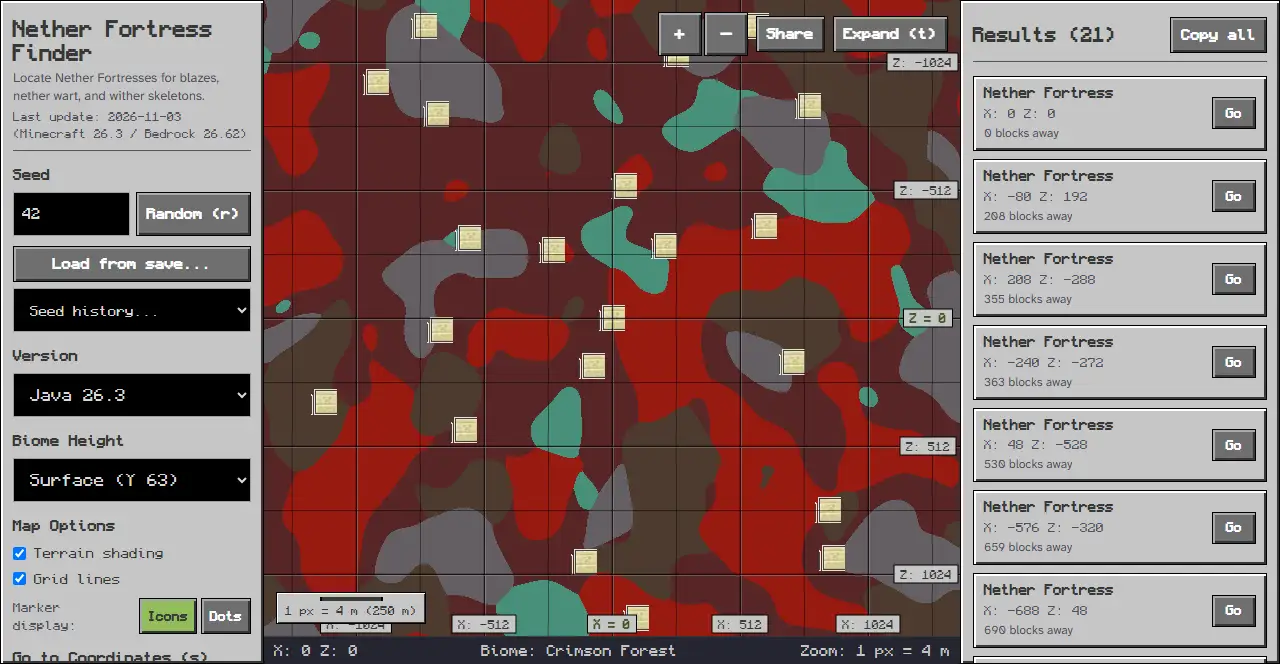
To find a Nether Fortress, enter your seed value into our interactive Nether Fortress Finder and choose your Minecraft edition. The interactive map displays the exact coordinates of every Nether Fortress corridor, bridge network, and crossing directly in your browser.
Entering Your Seed and Loading Dimensions
On desktop screens, controls sit in the left panel while results appear on the right. On mobile screens, the map sits at the top and controls reside in the bottom sheet under the Options tab.
- Locate the Seed input box with the “Seed or text” placeholder text.
- Enter or paste your world seed number into the field.
- Click the “Random (r)” button to roll an arbitrary seed for exploration.
- Open the “Seed history…” selector to review previously searched seeds.
- Click the “Load from save…” button to read your level.dat save file directly.
Selecting Your Game Edition and Dimension
- Open the Version menu in the panel on the left on desktop, or under the Options tab on mobile.
- Select your exact release from either the Java Edition or Bedrock Edition group.
- The tool sets Nether as the active realm to display fortress coordinates across the Nether dimension.
Configuring Map Options and Markers
Nether fortresses and bastion remnants share one grid of 27 chunks, with at least 4 chunks between neighbours. Each spot on that grid becomes a fortress with weight 2 or a bastion remnant with weight 3.
- In the panel on the left, locate the Map Options section.
- Toggle the “Terrain shading” checkbox to display elevation contours across the terrain.
- Toggle the “Grid lines” checkbox to display coordinate grid boundaries across the map.
- Under Marker display, choose “Icons” or “Dots” to customize how fortress markers appear on the map.
- If you also need piglin ruins, explore our companion Bastion Remnant Finder to locate treasure rooms.
Navigating the Map and Coordinate Search
- Enter target positions into the X and Z input boxes under “Go to Coordinates (s)”, then click the Go button.
- Use the ”+” and ”-” zoom buttons on the floating map toolbar to adjust your magnification level.
- Click the “Expand (t)” button or press the t key to view the map in fullscreen mode.
- Click the “Share” button to copy a direct link to your current map view.
Reading Status Bar Coordinates and Results
- Move your cursor across the map to view horizontal X and Z positions in the bottom status bar.
- Inspect the Biome indicator in the status bar to identify Nether biomes such as soul sand valleys or basalt deltas.
- Check the Zoom indicator in the status bar to view current pixel distance scaling.
- Click any fortress icon on the map to view its coordinate position and bridge alignment.
- A Nether fortress has a blaze spawner, and its stalk rooms grow nether wart on soul sand.
- On desktop, view coordinates and distance in the Results panel on the right.
- On mobile, tap the Results tab in the bottom sheet to inspect the list of fortress locations.
Troubleshooting Common Finder Issues
If you encounter issues while searching for Nether structures, check these common items:
- Empty Seed field: Ensure you entered a valid seed number or string before searching.
- Edition mismatch: If fortress markers do not match your world, check that the Version menu matches your target world edition.
- Target outside view: If no fortress markers appear on screen, use the “Go to Coordinates (s)” input or zoom out to inspect a wider radius.
Related Exploration Guides
When planning an expedition into the Nether dimension, consult our companion guides:
- If you seek piglin bartering and upgrade templates, use our Bastion Remnant Finder to locate nearby ruins.
- Master overall navigation with the How to Use a Minecraft Seed Map Guide.
- To locate specific biomes across dimensions, read our How to Find a Biome from a Seed Guide.
Sources
Tool interface and layout inspected on chunkbase.dev Nether Fortress Finder application.