
Locating Strongholds from Seed Values
To find a stronghold, enter your world seed into our Stronghold Finder and select your game version from the Version menu. The Stronghold Finder pinpoints every stronghold location across the world and lists precise coordinates in the results table.
Our browser tool maps every stronghold position directly from your seed value without requiring external software. Players use these coordinates to navigate straight to their destination. Java Edition places 128 strongholds in rings around the center of the world. A thrown eye of ender flies toward the nearest stronghold. The portal room of a stronghold holds the end portal frame blocks and a silverfish spawner.
Step 1: Entering Your Seed
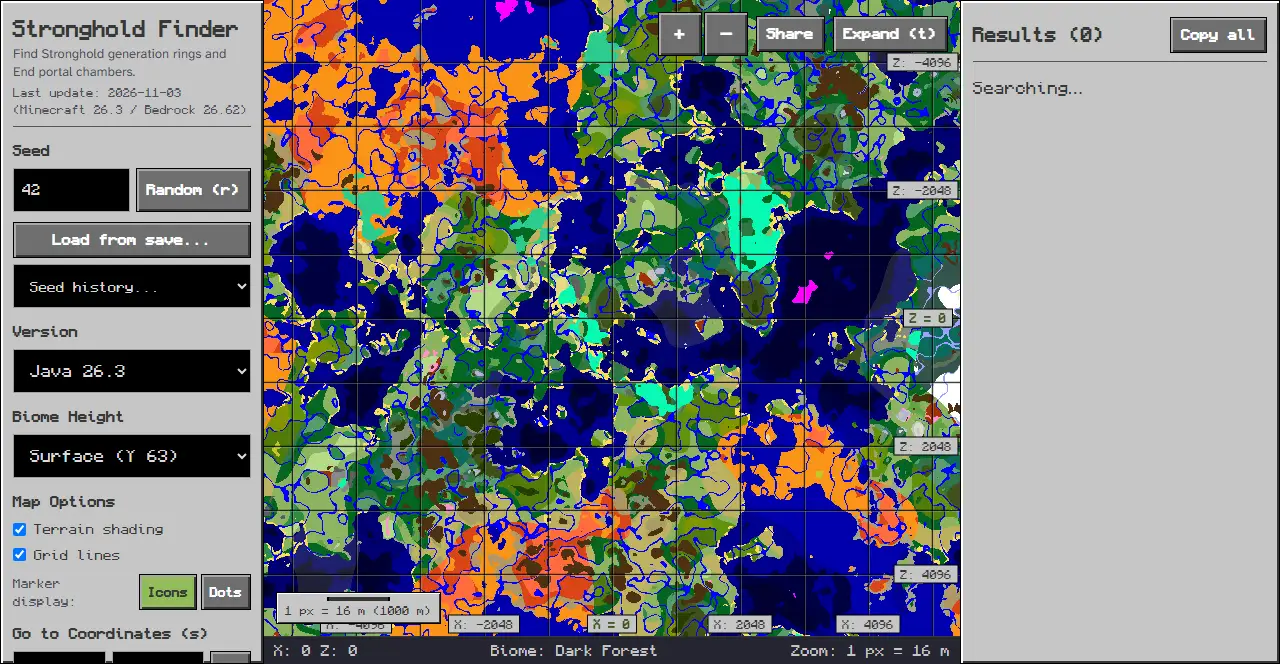
Navigate to the Stronghold Finder in your browser. On desktop screens, controls reside in the panel on the left, while on mobile screens, the map appears at the top and controls are in the bottom sheet accessed by tapping the “Options” tab. Find the “Seed” input field in the panel on the left, marked with the placeholder “Seed or text”. Enter your world seed string or numeric code into this field.
To test locations on a fresh world, click the “Random (r)” button to roll a new seed. You can also click the “Load from save…” button to read your level.dat file, or open the “Seed history…” selector to reload previously inspected seed numbers.
Step 2: Choosing Your Game Edition and Version
Locate the Version menu in the panel on the left. Open the menu to view options divided into “Java Edition” and “Bedrock Edition” categories. Select the specific version that matches your world save to display that version’s coordinates on the map.
Step 3: Navigating to Target Coordinates
To locate strongholds relative to your current base, use the “Go to Coordinates (s)” feature in the panel on the left. Enter your current position values into the X and Z fields and click the “Go” button to center the map.
Use the ”+” and ”-” zoom buttons to zoom in for precise block positions or zoom out to inspect wide map areas. Click “Expand (t)” to toggle fullscreen mode, or use the “Share” button to copy a direct link to your current view. Under Map Options, toggle checkboxes for “Terrain shading” and “Grid lines” to adjust map rendering.
Step 4: Reading Structure Coordinates and Distance
On desktop displays, the Results panel on the right lists discovered strongholds relative to your map center. On mobile screens, results are viewed by tapping the “Results” tab in the bottom sheet. Each entry includes:
- Exact X and Z horizontal coordinates for the stronghold center.
- Total distance in blocks from your selected viewpoint.
- Quick navigation links that focus the map view on that stronghold marker.
At the bottom of the tool, the status bar continuously reports details beneath your cursor:
- Live X and Z coordinates of the hovered location.
- The “Biome” name at those coordinates.
- Current “Zoom” level ratio.
Troubleshooting
If structure markers do not display as expected, review the following settings:
- An empty seed field halts calculations; ensure your numeric seed or text seed is entered.
- A version mismatch between Java and Bedrock leads to incorrect structure coordinates.
- If no markers appear in the immediate viewport, use the zoom out button or enter coordinate values to shift your view.
Related Exploration Guides
When planning your world exploration, consult our technical guides:
Open our Stronghold Finder to inspect your world and calculate your nearest structure coordinates.
Sources
Tool interface and controls inspected on chunkbase.dev.